![SiteZeus-Logo-MARK.png]](https://help.sitezeus.com/hs-fs/hubfs/Hubspot%20Assets/SiteZeus-Logo-MARK.png?height=40&name=SiteZeus-Logo-MARK.png)
How This Helps:
- Capture what's unique to your process. Every organization tracks different details alongside standard timeline tasks — permit numbers, internal approval codes, vendor names, budget codes, and more. Timeline Custom fields let you define exactly what you need, per timeline type.
- One workflow, three timeline types. Development, Renovation, and Reopen timelines all support custom field definitions, so you can apply consistent tracking across the full lifecycle of a site.
- Reporting without extra work. Timeline custom field values can now be added as columns in the Development Report, so the data you collect on a timeline is immediately visible in reporting — no manual reconciliation needed.
- Flexible, not disruptive. Custom fields are additive. They sit alongside existing timeline tasks and dates, so your current timeline setup and workflows continue to work exactly as they do today.
How Timeline Custom Fields Differ from Site Custom Fields
SiteZeus already supports custom fields at the Site level. New Timeline Custom Fields add a second layer, and choosing the right one depends on whether the data describes the site itself or a specific project happening on that site.
| Custom Field Definition Type | Best for | Examples | |
|---|---|---|---|
| Site | Attributes that describe the site broadly, rarely change, and hold true across every development, renovation, and reopen that site goes through | Seating capacity, parking spaces, equipment models | |
| Timeline (Development/Renovation/Reopen) | Data tied to a specific project happening on the site — scoped to that particular timeline instance | Vendor name, permit number, project type |
Key distinction: Site custom fields describe the site itself and stay consistent no matter what project is underway. Timeline custom fields describe a specific project on the site, so a site can accumulate different values across multiple timelines over its lifecycle — for example, a different permit number and vendor each time it goes through a renovation.
Part 1: Creating a Timeline Custom Field Definition
Custom field definitions are created at the tenant/admin level and become available across all sites using that timeline type.
- In SiteZeus NEXT, navigate to Admin > Custom Fields
- Click the '+' icon at the top of the grid to create a new Custom Field Definition.
- Add fields to your Custom Field Definition: Name and Type (required) as well as Section, Group, Order and Help Text (optional).
- Select Timeline Types under 'Areas' on which your new Custom Field should be available.
- Click Save.
The new field will now appear automatically on every timeline of that type.
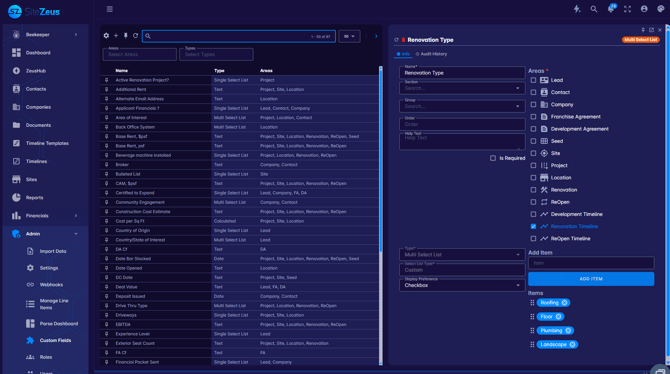
Part 2: Managing Existing Custom Fields
From a Site's Timeline tab under each specific Timeline, you can now access a tab titled 'Custom Data' where edits to each Timeline Custom Field can be made: 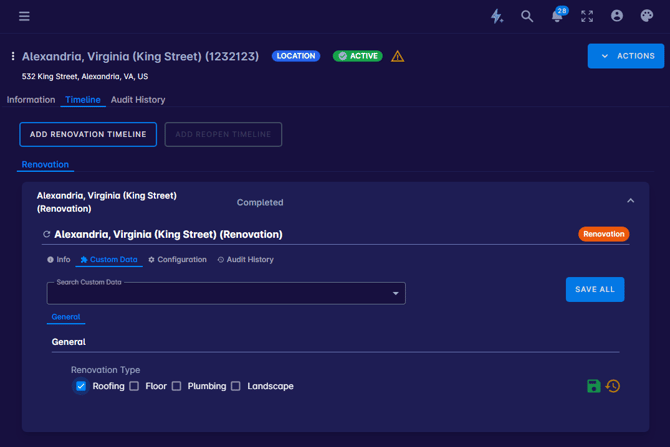
Part 3: Adding Timeline Custom Fields to the Development Report
- Navigate to the Development Report.
- Click Customize View
- In the column picker, either search by field name, or narrow your search by selecting 'Custom Fields' under 'Available Columns'.
- Select the specific custom field(s) you'd like to add — timeline custom fields say 'timeline' in parenthesis. Order the selected fields to your preference.
- Click Apply.
- The selected custom field(s) will now appear as columns in the report, populated with each site's current value for that field.
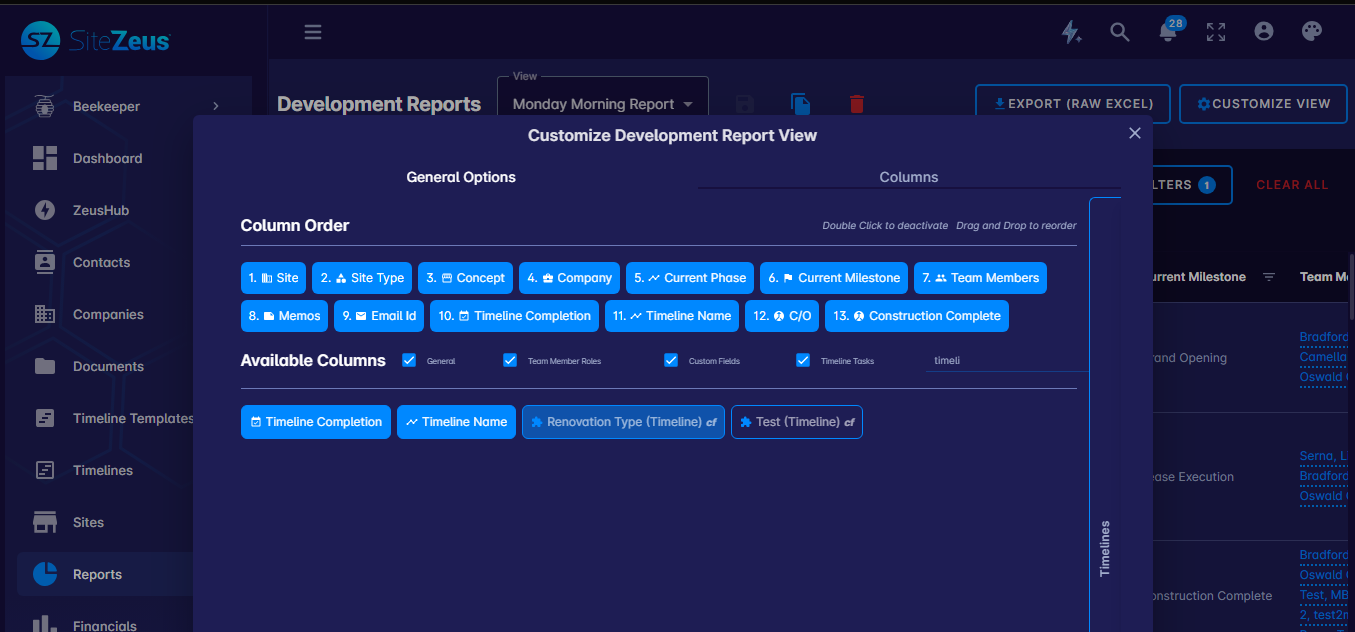
You can combine timeline custom field columns with any other standard Development Report columns and filters, and save the configuration as a custom report view for future use.
FAQ
Can I use the same custom field across Development, Renovation, and Reopen timelines? Yes, simply select all three timeline types when creating your Custom Field Definition. Each timeline type shows as a separate line on the Development Report to prevent confusion across timelines.
Will existing timelines automatically get the new field? Yes — once a field is created, it becomes available on all timelines of that type, including ones already in progress.
Who can create or edit custom field definitions? This is typically limited to admin-level users. If you don't see the Custom Fields option under Timeline Settings, reach out to your account admin.
Have questions about setting up Timeline Custom Fields for your organization?
Reach out to your Customer Success contact via the in-app chat for a demo!