![SiteZeus-Logo-MARK.png]](https://help.sitezeus.com/hs-fs/hubfs/Hubspot%20Assets/SiteZeus-Logo-MARK.png?height=40&name=SiteZeus-Logo-MARK.png)
This widget displays all contacts assigned to a site, making it easy to see who is responsible for what at a glance.
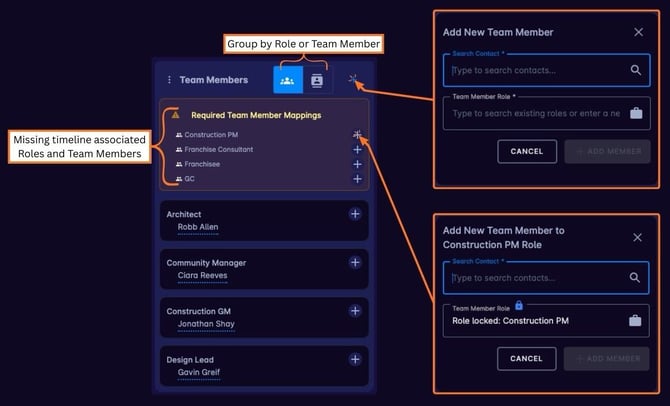
The user that created the site will automatically be listed as a team member. Required roles and contacts associated via the timeline that have not yet been assigned will appear at the top of the widget, helping teams quickly identify gaps. Those can be assigned with the plus (+) icon next to the role or contact you wish to assign. Any team member and role can be added with the plus (+) icon in the top right. The list of team members can be grouped by Contact or Role, allowing you to view assignments in the way that best fits your workflow. Users without the permission to view all sites will only be able to access sites that they are assigned as a team member.
Team Member Roles & Notifications
More than one contact can be assigned to a role allowing timeline task notification for that role go out to more than one person. This is beneficial for roles that do not belong to the same contact across the organization as the role can be assigned at site-level while utilizing the same timeline templates.
By clearly showing who is involved in a site and highlighting unassigned roles, the Team Members widget helps improve coordination and accountability across teams. It ensures everyone knows their responsibilities, reduces confusion as projects move forward, and supports smoother collaboration throughout the lifecycle of a site.
Need Help?
If you have questions or feedback about any of these features, please contact support using the in-app chat. Thanks for reading!