![SiteZeus-Logo-MARK.png]](https://help.sitezeus.com/hs-fs/hubfs/Hubspot%20Assets/SiteZeus-Logo-MARK.png?height=40&name=SiteZeus-Logo-MARK.png)
Who Can Use Memo Notifications
Memo Notifications are available to users with the View All Memos permission. You’ll only be notified about memos you’re allowed to see, and never about memos you added yourself.
Setting Up Memo Notifications
- Click the person icon in the upper-right corner.
- Go to Settings

- Under Notifications › Memos, find Receive a notification when a memo is added.
- Choose one or more record types to follow:
- Site
- Company
- Timeline
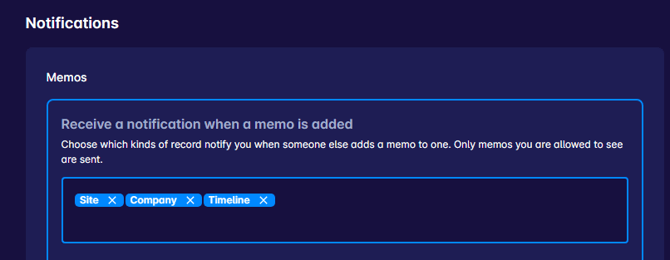
Your changes save automatically. To stop receiving memo notifications, clear all the record types.
Narrowing Down Your Notifications
Once you’ve chosen a record type, you can add filters so you only hear about the memos that matter to you. Leave a filter empty to be notified for everything.
- Site types: available when Site is selected. Only notify for memos on certain site types: Seed, Opportunity, Project or Location.
- Timeline types: available when Timeline is selected. Only notify for memos on certain timeline types, such as Development, Renovation or Re-Open.
- Memo categories: only notify for memos in certain categories. The list shows the memo categories your organization uses.
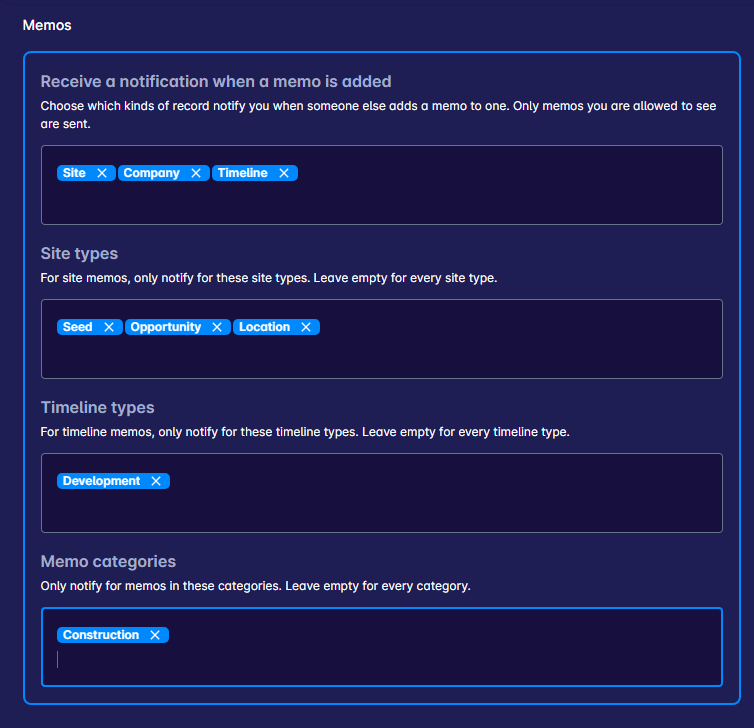
For example, a construction manager could follow Site memos for Projects in the Construction category, so they hear about new construction notes on active projects without the noise from every other memo.
What’s in a Memo Notification
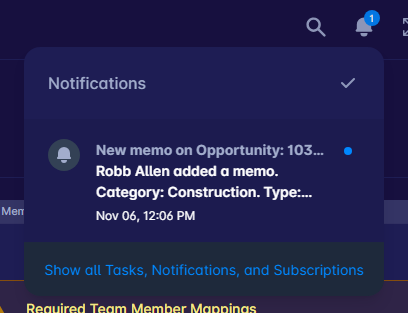
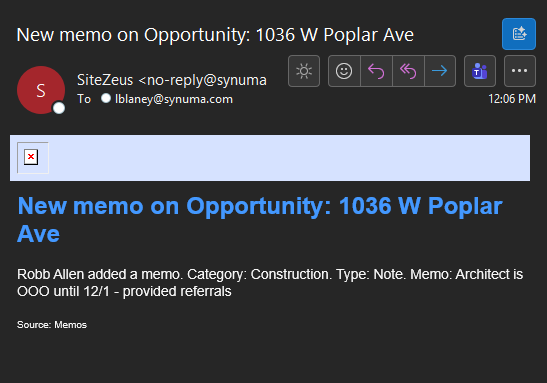
Each notification includes:
- Who created the memo
- The record the memo was added to, with a link to it
- The memo category and type
- The memo content

Where Notifications Appear
Memo notifications appear under the bell icon in the upper-right corner and in your notification history in the ZeusHub. If you’ve opted into Email Notifications in User Settings, you’ll also get them by email at the address you log in with.
Need Help?
If you have questions or feedback about any of these features, please contact support using the in-app chat. Thanks for reading!