![SiteZeus-Logo-MARK.png]](https://help.sitezeus.com/hs-fs/hubfs/Hubspot%20Assets/SiteZeus-Logo-MARK.png?height=40&name=SiteZeus-Logo-MARK.png)
Before You Begin
- You need import permission for the record type you're importing, such as Import Opportunities, Import Projects, Import Location, or Import Companies and Contacts.
- Companies and concepts must already exist in SiteZeus before you import records that reference them.
- To start a timeline during the import, the timeline template must be active and published.
How to Import
- Go to Admin > Import Data.
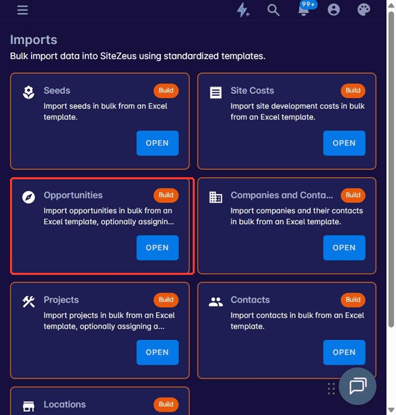
- Find the record type you want to import and click Open.
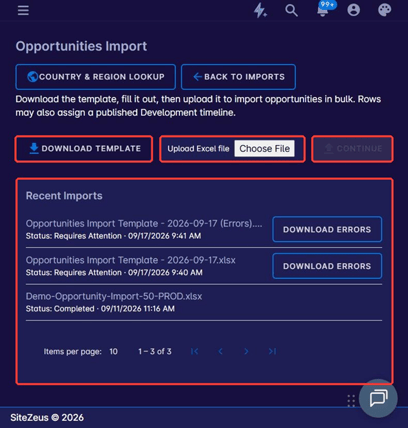
- Click Download Template. The template includes every standard field plus your active custom fields for that record type. Custom field columns start with "Custom Field:". Required columns are marked with an asterisk (*).
- Fill out the template, with one record per row.
- Click Choose File to upload your completed file, then click Continue.
- On the Map Columns step, choose which column in your spreadsheet goes with each import field. You have to map every required field before you can continue.
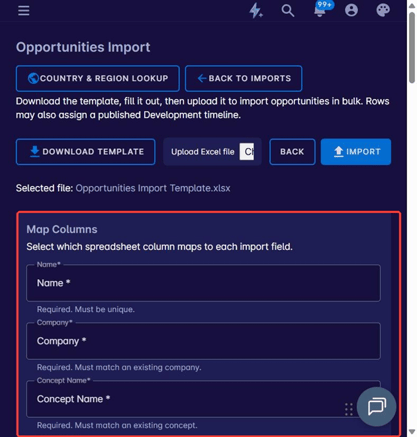
- Click Import. To pick a different file instead, click Back.
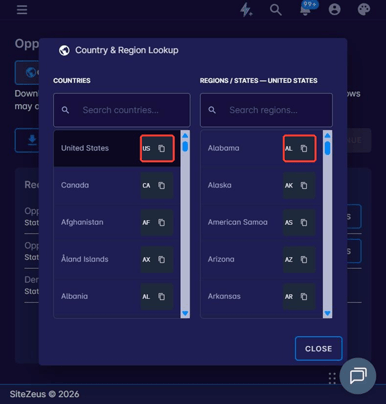
Tip: Click Country & Region Lookup on the import page to find the country and state or province codes to use in your spreadsheet. You can copy each code with one click.
Reviewing Your Results
When the import runs, you'll see how many rows were queued and then how many records were imported. If any rows had errors, you'll see how many and a link to download the error file.
Every import is listed under Recent Imports with one of these statuses:
- Completed: every row was imported.
- Requires Attention: some rows weren't imported. Click Download Errors to get an Excel file that lists each failed row and why it failed, such as a duplicate name or a company or concept that doesn't exist. Fix those rows and import them again.
- In Process: the import is still running.
Field Guide
Fields for Opportunities, Projects, and Locations
| Field | Details |
|---|---|
| Name* | Required. Must be unique. |
| Company* | Required. Must match an existing company. |
| Concept Name* | Required. Must match an existing concept. |
| Client Identifier | Optional. Letters and numbers. |
| Building Type | Optional. If a value doesn't exist yet, it will be created. |
| Optional. Full email address. | |
| Email ID | Optional. Only the part before the "@". |
| Street Address 1 / 2, City, Postal Code | Optional. |
| State | Optional. A state or province name or code within the country you entered. |
| Country | Optional. A country name or ISO code, such as US or CA. Required if you enter a state or province. |
| Indoor SqFt / Outdoor SqFt | Optional. |
| Comments | Optional. |
| Team Member 1–5 Name | Optional. Must match an existing contact, or an existing user if your account uses users instead of contacts. |
| Team Member 1–5 Role | Required when you enter the matching Team Member Name. If the role doesn't exist yet, it will be created. |
Opportunities and Projects only
| Field | Details |
|---|---|
| Landlord Turnover Date | Optional. Date. |
| Projected Annual Sales | Optional. Number. |
Locations only
| Field | Details |
|---|---|
| Open Date* | Required. The date the location opened. |
| Is Open* | Required. Yes or No. To import a location that has since closed, answer No. |
| Phone Number | Optional. |
| Date Closed | Required when Is Open is No. Must be on or after the Open Date. |
| Closed Reason | Required when Is Open is No. |
| Closed Comment | Optional. Only used when Is Open is No. |
Starting a Timeline During Import
Opportunity, Project, and Location imports can also start a timeline on each record.
- Opportunities and Projects can use an active, published Development timeline.
- Locations can use an active, published Renovation or ReOpen timeline.
| Field | Details |
|---|---|
| Timeline Name | Optional. Must match the name of an active, published timeline of the right type. |
| Starting Task Name | Required when you enter a Timeline Name. Must match a task on that timeline that other tasks depend on. If you choose a task that nothing depends on, the timeline will contain only that one task. |
| Starting Task Date | Enter either this date or the Starting Task End Date when you use a timeline. |
| Starting Task End Date | Enter either this date or the Starting Task Date when you use a timeline. |
| Does Timeline Include Weekends | Required when you enter a Timeline Name. Yes or No. |
Fields for Companies and Contacts
Each row adds a company, a contact, or both. To give a company more than one contact, repeat the company on several rows with a different contact on each one.
| Field | Details |
|---|---|
| Company Name* | Required. Rows with the same company name are imported as one company with several contacts. |
| Company Type* | Required. One of: Corporate, Vendor, Partner, Franchisee, Franchisee Owner, or Franchisor. |
| Company Status | Optional. Defaults to Active. If a status doesn't exist yet, it will be created. |
| Phone, Street Address 1 / 2, City, Postal Code | Optional. Company address and phone. |
| Country / State/Province | Optional. Country is required if you enter a state or province. |
| Is Primary Contact | Optional. Yes or No. A company can have more than one primary contact. If no row is marked, the company's first contact becomes the primary contact. |
| Contact First Name / Last Name | Required on any row where you fill in another contact column. |
| Contact Email / Contact Phone | Optional. Used together with the contact's name to match a contact you already have, so a second copy isn't created. |
| Contact Title, Address, Country, State/Province, Postal Code, Notes | Optional. |
Company custom fields start with "Company Custom Field:" and contact custom fields start with "Contact Custom Field:".
Imports in NEXT let you add Opportunities, Projects, Locations, and Companies with their Contacts in bulk, using a template built from your own fields. Map your columns, run the import, and use the error file to quickly fix and re-import any rows that need attention, so your data is ready to work with right away.
Questions or feedback?
Please reach out to our support specialists in the in-app chat — we'd love to hear from you!