![SiteZeus-Logo-MARK.png]](https://help.sitezeus.com/hs-fs/hubfs/Hubspot%20Assets/SiteZeus-Logo-MARK.png?height=40&name=SiteZeus-Logo-MARK.png)
Who Can Use the FDD Status Report
The FDD Status Report is available to users with the Sales Reports permission in NEXT. It shows FDDs for the leads you're allowed to see.
Opening the Report
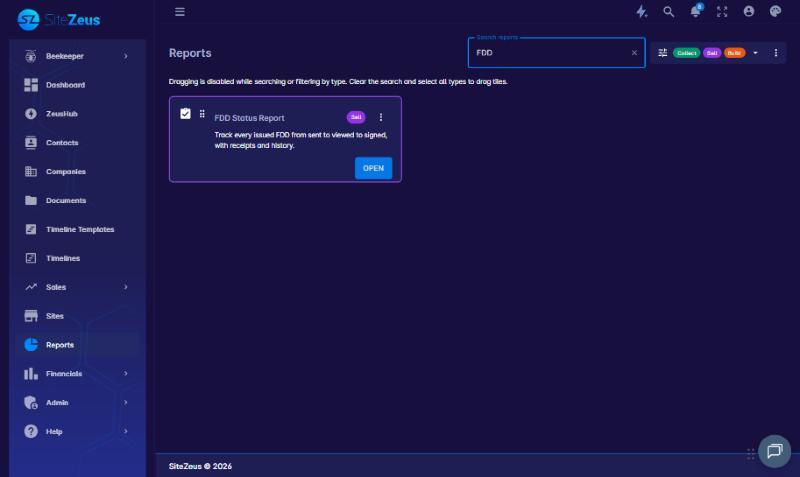
- Click Reports in the left navigation.
- Find the FDD Status Report tile, which is tagged Sell. You can type "FDD" in the Search reports box to find it quickly.
- Click Open.
What's in the Report
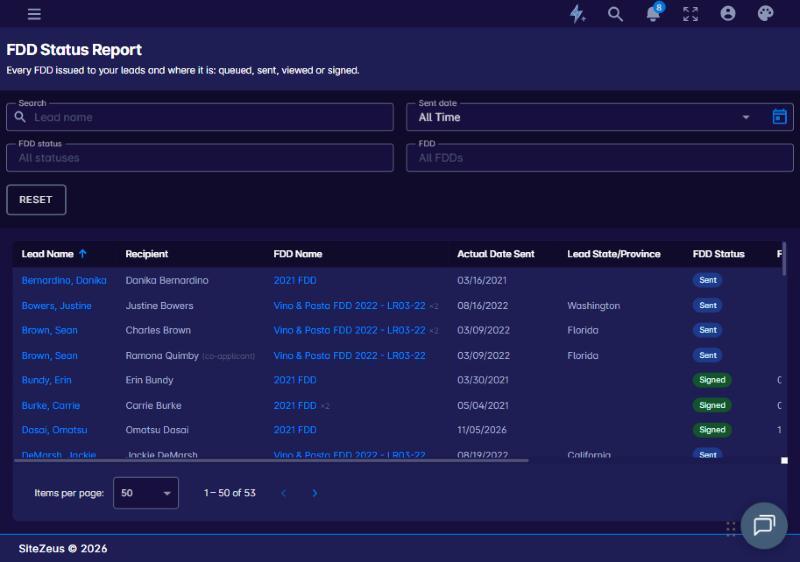
Each row is one FDD issued to one recipient on a lead, as of its most recent send.
| Column | What it shows |
|---|---|
| Lead Name | The lead the FDD was issued for. Click it to open the lead card. |
| Recipient | Who the FDD was sent to. Hover over the name to see their email address. Co-applicants are marked (co-applicant). |
| FDD Name | The FDD version that was sent. Click it to open that FDD. If the FDD was sent more than once, you'll see a count such as ×2, and the row shows the latest send. |
| Actual Date Sent | The most recent date the FDD was sent to this recipient. |
| Lead State/Province | The lead's state or province. |
| FDD Status | Where the FDD is: Queued, Sent, Viewed, Signed, Declined or Bounced. |
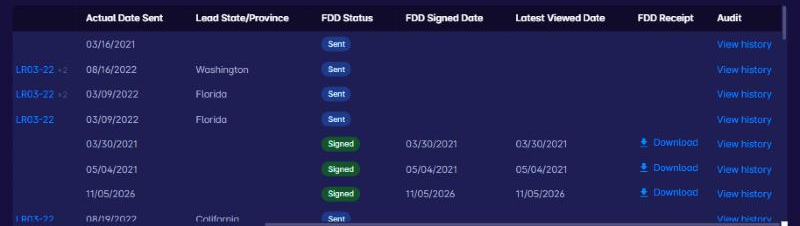
| FDD Signed Date | The date the FDD was signed. It's blank if the FDD hasn't been signed yet. |
| Latest Viewed Date | The most recent date the recipient viewed the FDD. It's blank if they haven't viewed it yet. |
| FDD Receipt | Click Download to save the signed FDD receipt. It appears once the FDD has been signed. |
| Audit | Click View history to see the lead's full FDD history. |
Searching and Filtering
Use the filters at the top of the report to narrow the list:
- Search: find FDDs by lead name.
- Sent date: choose a range such as Last 30 Days, Last 90 Days, Last 12 Months or This Quarter, or set your own dates. The default is All Time.
- FDD status: show only certain statuses, for example just Sent and Viewed to see who still needs to sign.
- FDD: show only certain FDD versions.
Click Reset to clear all filters.
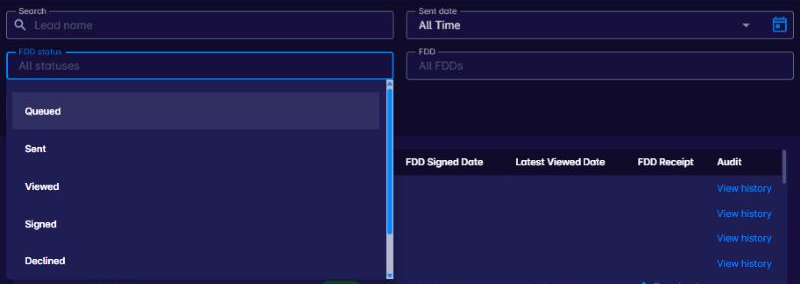
For example, a sales manager could filter to Sent and Viewed FDDs from the last 30 days to get a quick list of candidates to nudge toward signing.
Sorting
Click a column header to sort by Lead Name, Recipient, FDD Name, Actual Date Sent, Lead State/Province, FDD Status, FDD Signed Date or Latest Viewed Date. Click it again to reverse the order.
Viewing a Lead's FDD History
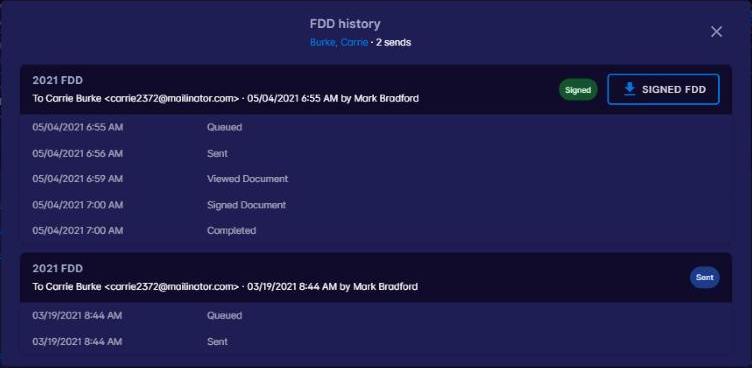
Click View history in the Audit column to open the lead's full FDD history. Every send to the lead and any co-applicants is listed, newest first, with:
- The FDD version, the recipient and their email address
- When it was sent and who sent it
- Each step it went through, with a date and time, such as Queued, Sent, Viewed Document, Signed Document and Completed
If a send has been signed, click Signed FDD to download the receipt right from the history.