![SiteZeus-Logo-MARK.png]](https://help.sitezeus.com/hs-fs/hubfs/Hubspot%20Assets/SiteZeus-Logo-MARK.png?height=40&name=SiteZeus-Logo-MARK.png)
Classic Platform
In the Classic platform, display settings are managed through the user menu.
To customize your experience:
- Click your username in the top-right corner
- Select a color option under Light Mode to adjust the header and banner styling
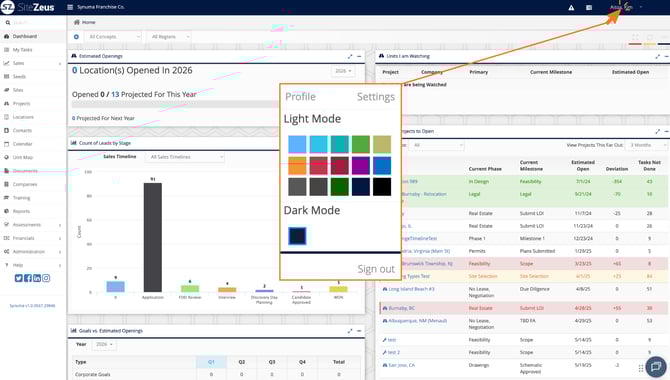
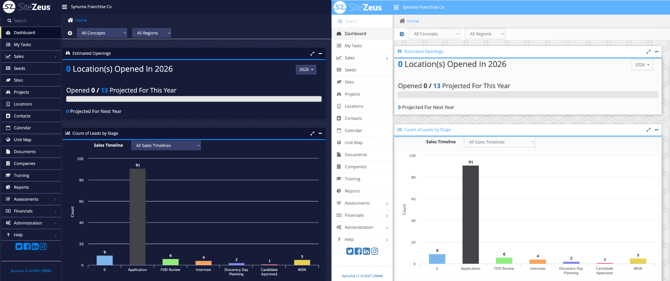
You can also enable Dark Mode, which applies a darker, navy-themed interface across the platform. This can be especially useful in low-light environments or for reducing eye strain during extended use.
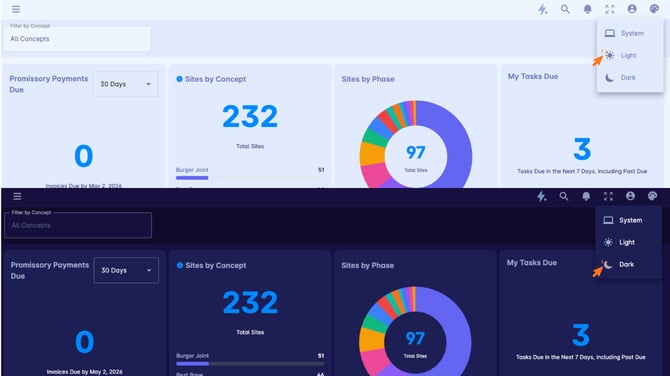
In NEXT, you can easily switch between display modes using the artist palette icon in the top-right corner of the application.
From here, you can choose to:
- Set the platform to Light Mode
- Set the platform to Dark Mode
- Match your system settings, allowing the platform to automatically adjust based on your device’s light or dark preference
This flexibility makes it easy to tailor your experience for different environments throughout the day.
Customizing your display settings helps create a more comfortable and accessible user experience. Whether you prefer a brighter interface or a darker theme for extended use, these options allow you to work more efficiently and reduce visual fatigue throughout your day.
Need Help?
If you have questions or feedback about any of these features, please contact support using the in-app chat. Thanks for reading!